
Find and Email Sales Leads with AI Leadz
View Interactive Demo1
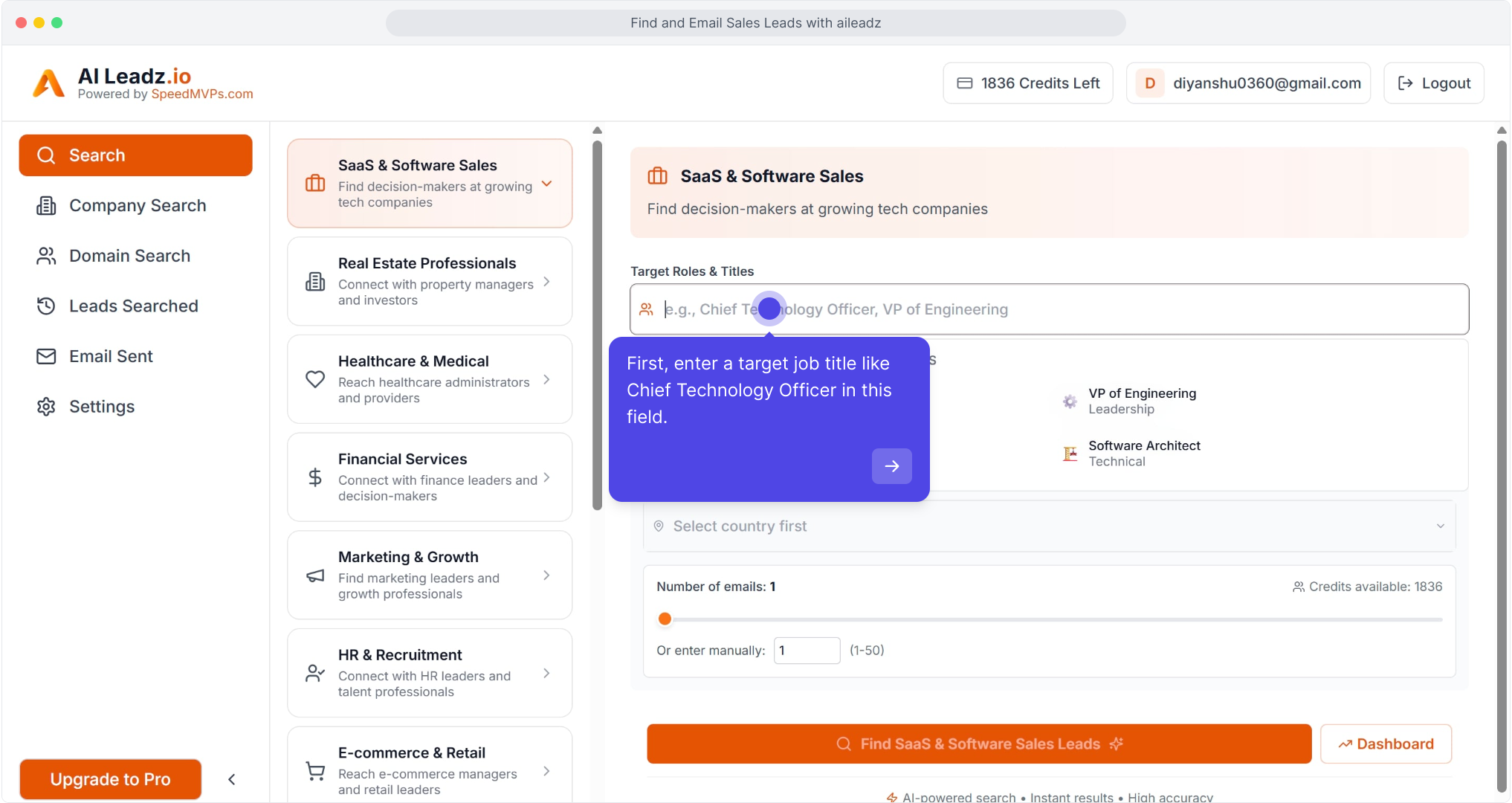
First, enter a target job title like Chief Technology Officer in this field.
2
Video StepVideo
3
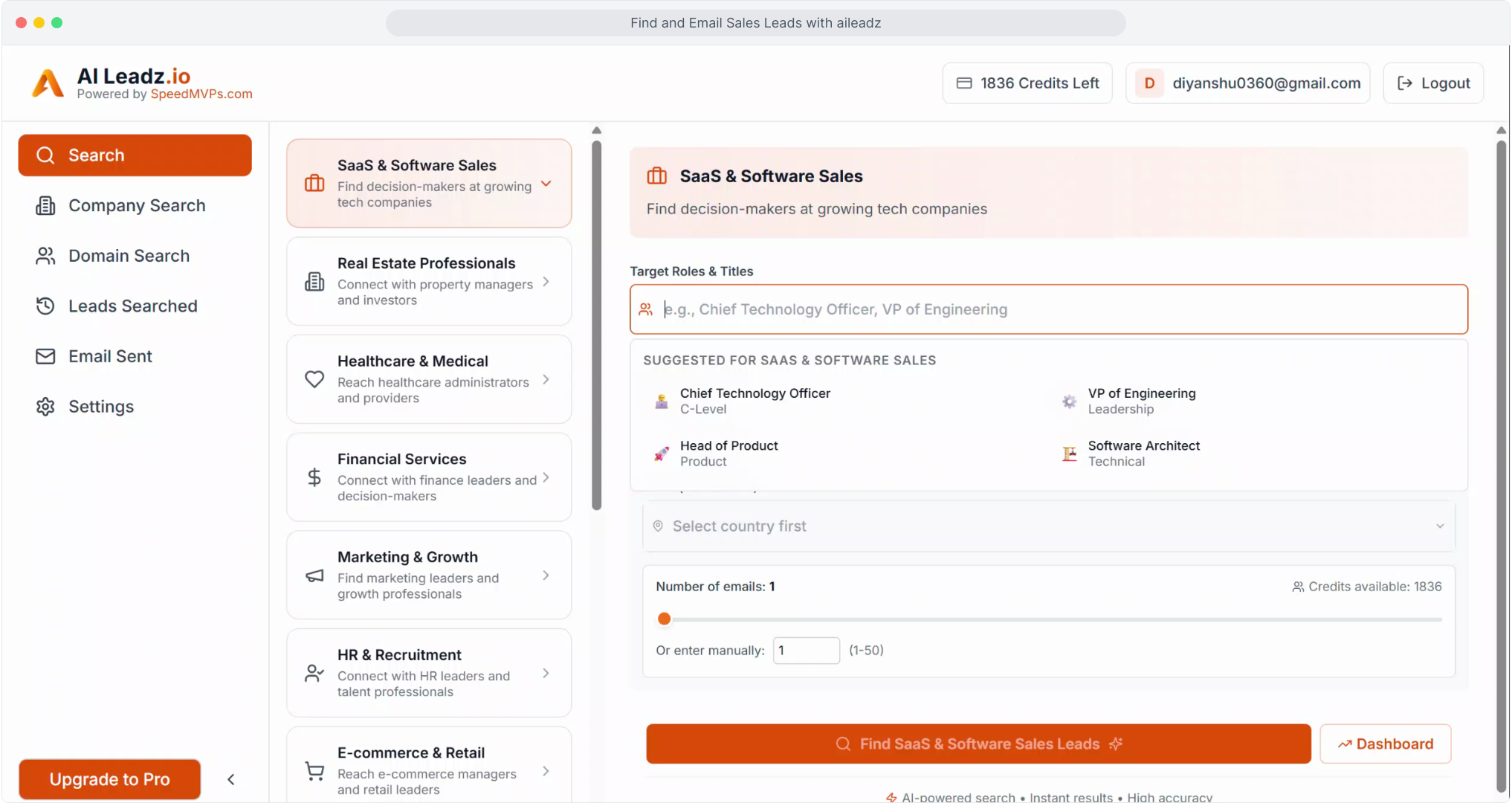
From here, you can refine your search criteria by entering target job titles.

4
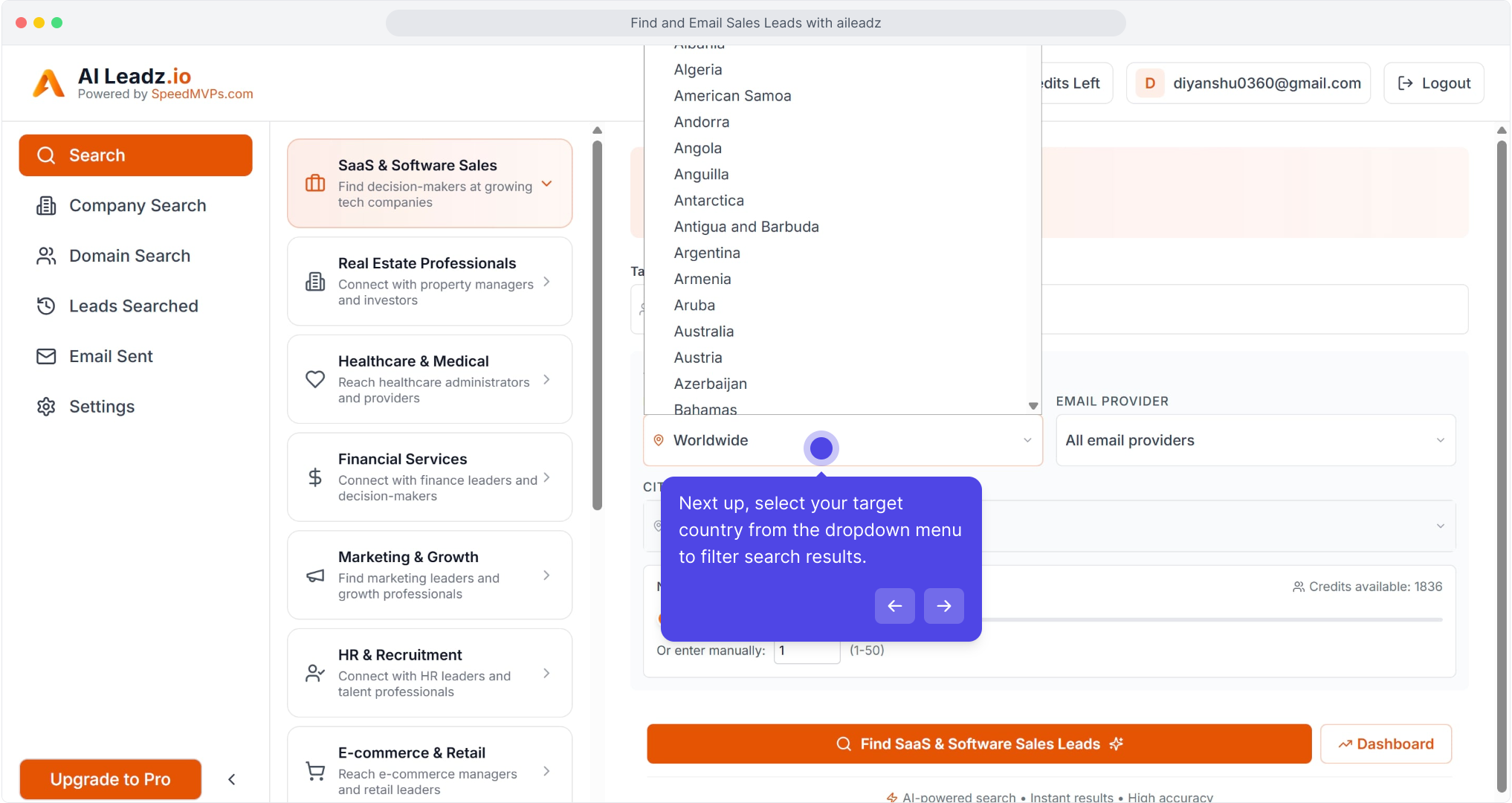
Next up, select your target country from the dropdown menu to filter search results.
5
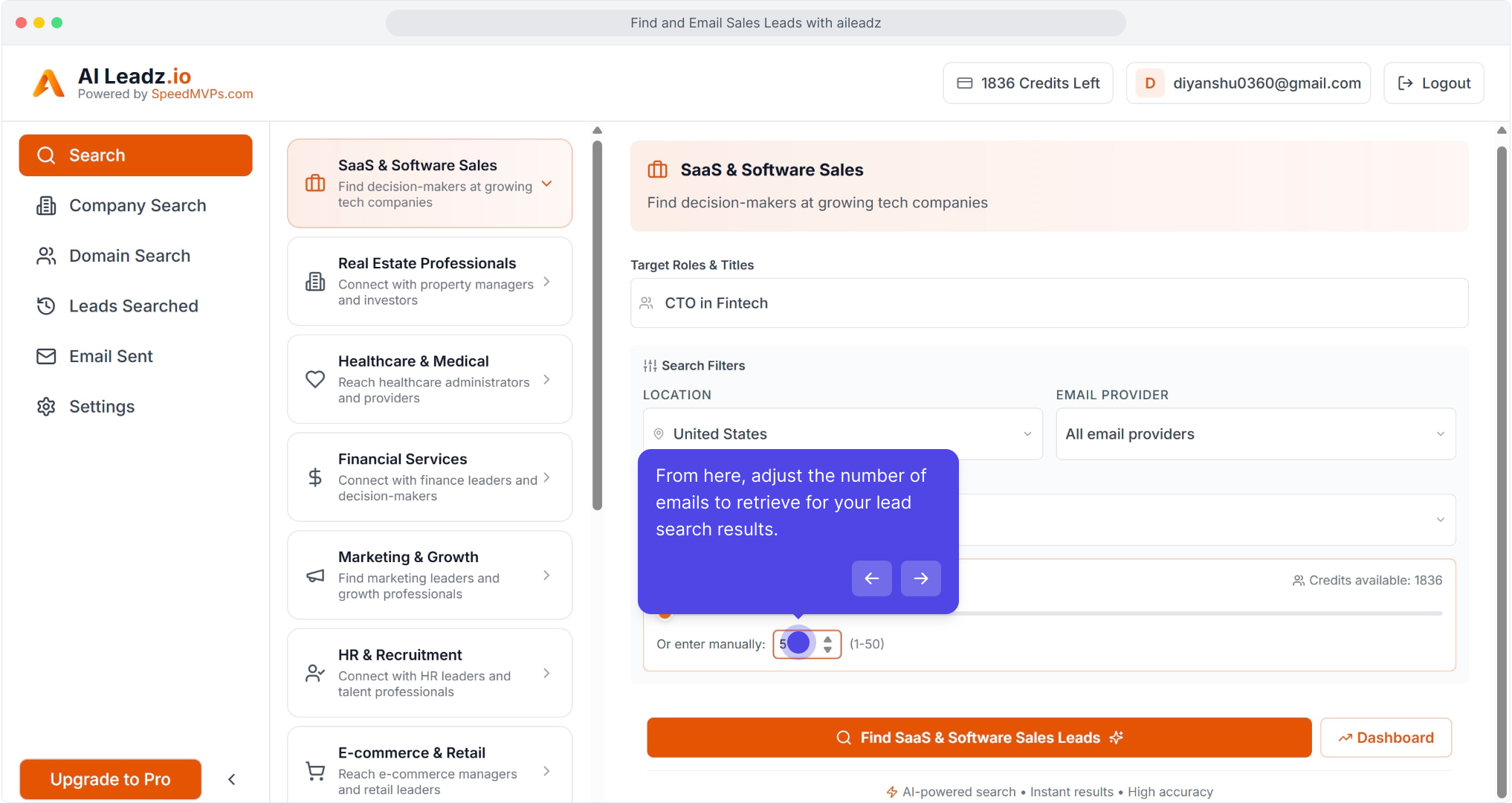
From here, adjust the number of emails to retrieve for your lead search results.
6
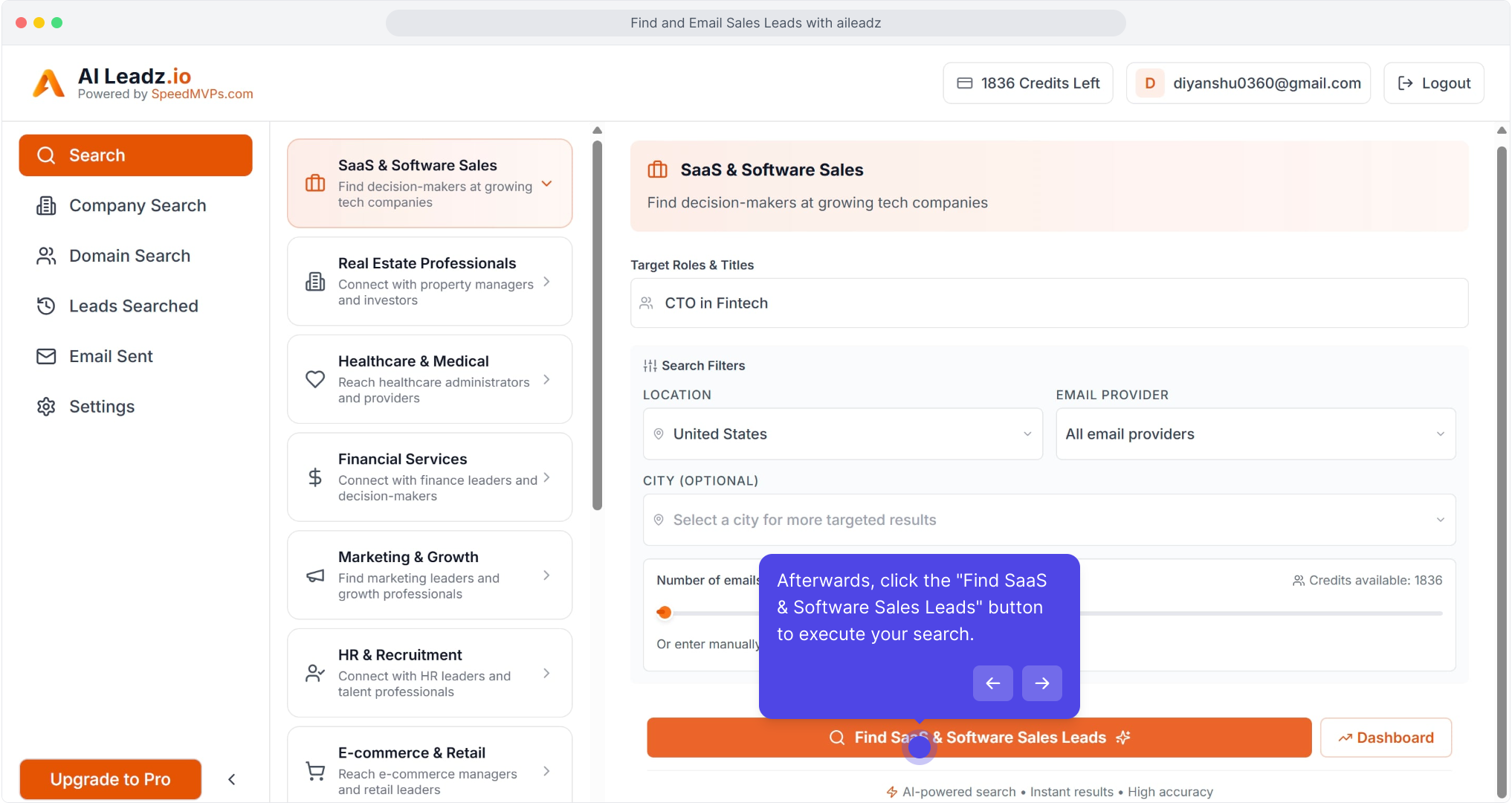
Afterwards, click the "Find SaaS & Software Sales Leads" button to execute your search.
7
Next up, click the left arrow to navigate to the previous page of leads.

8
Next up, click the plus icon to add Jorge Alfaro to your selected leads list.

9
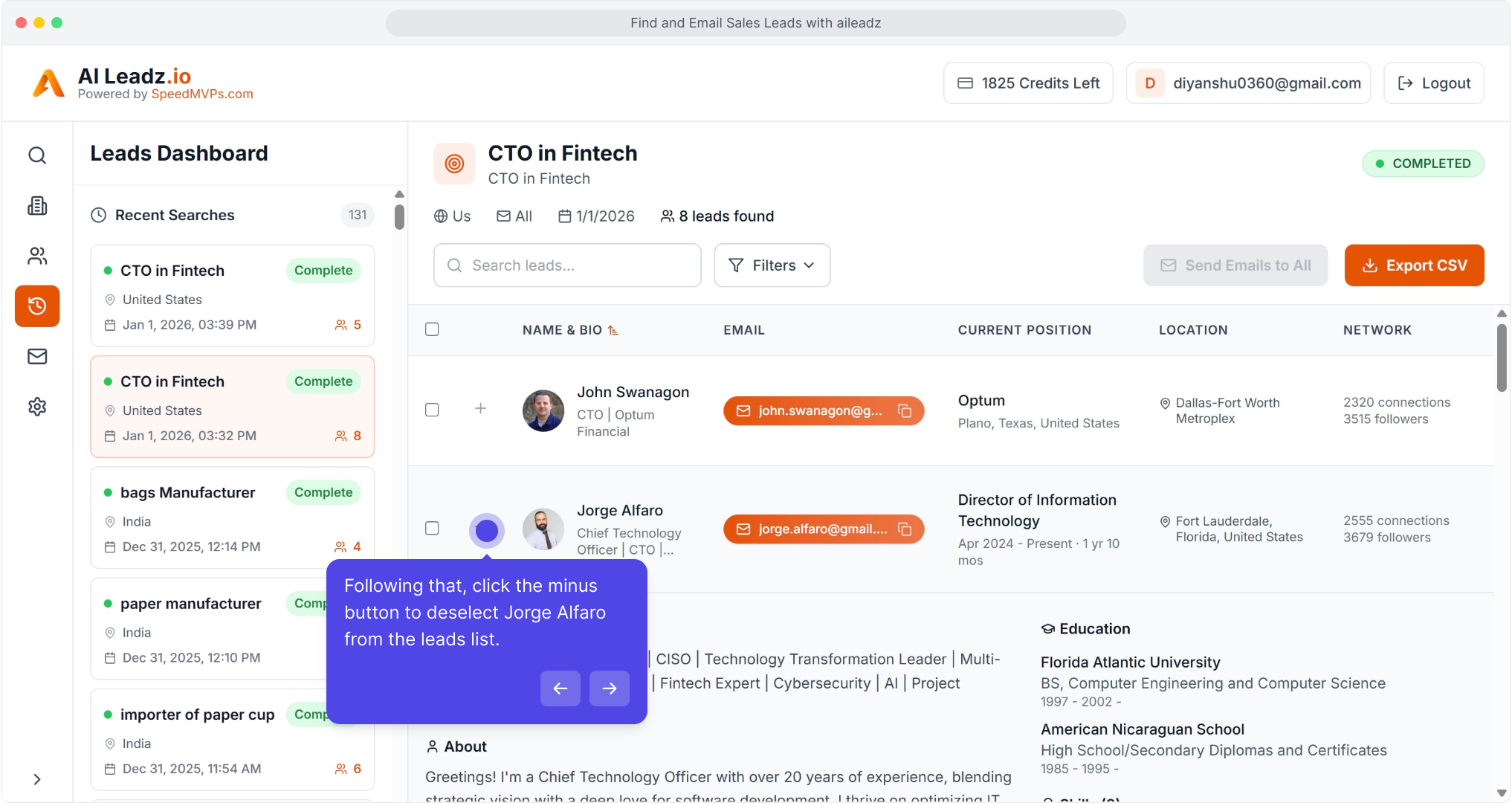
Following that, click the minus button to deselect Jorge Alfaro from the leads list.
10
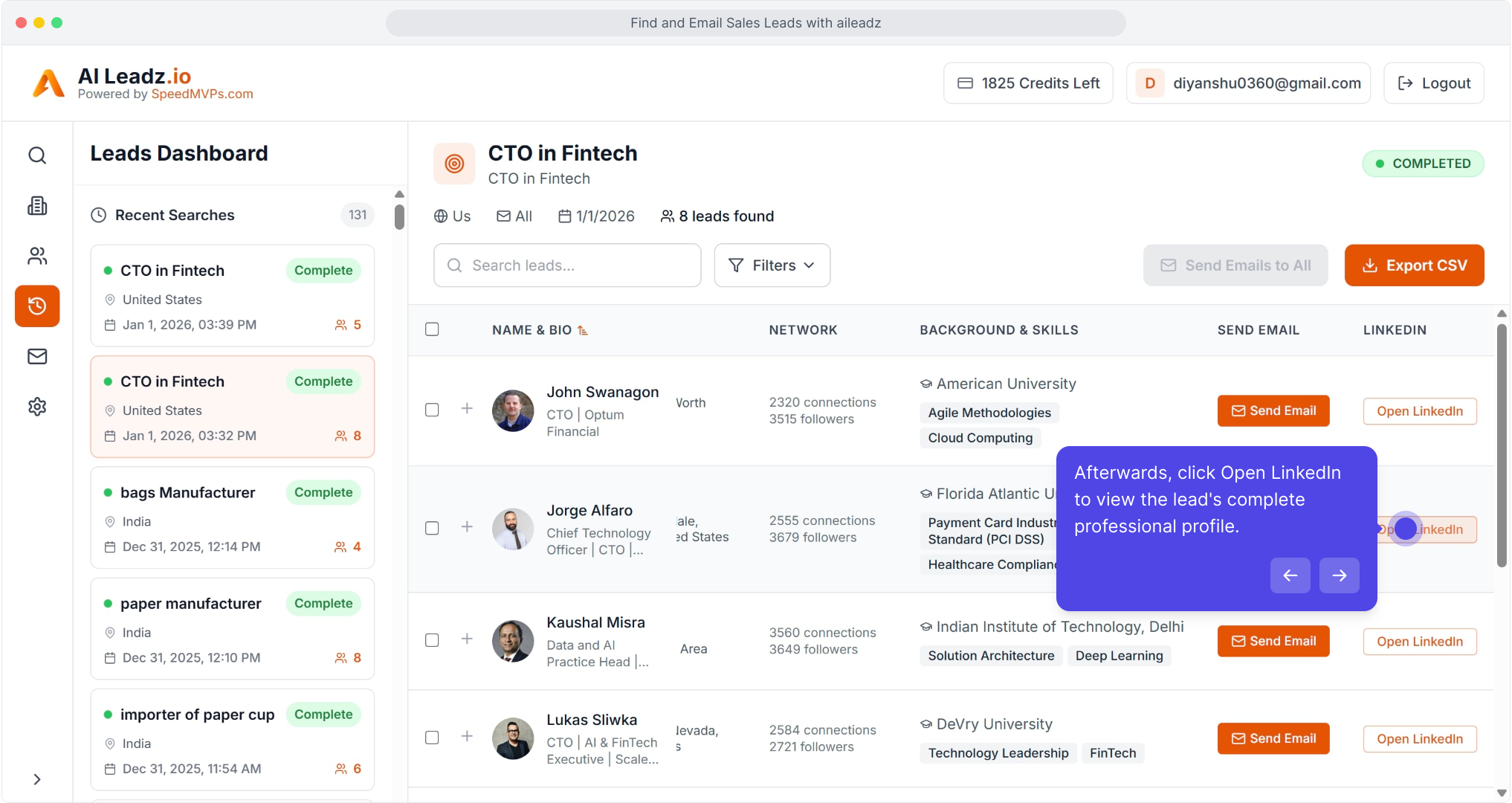
Afterwards, click Open LinkedIn to view the lead's complete professional profile.
11
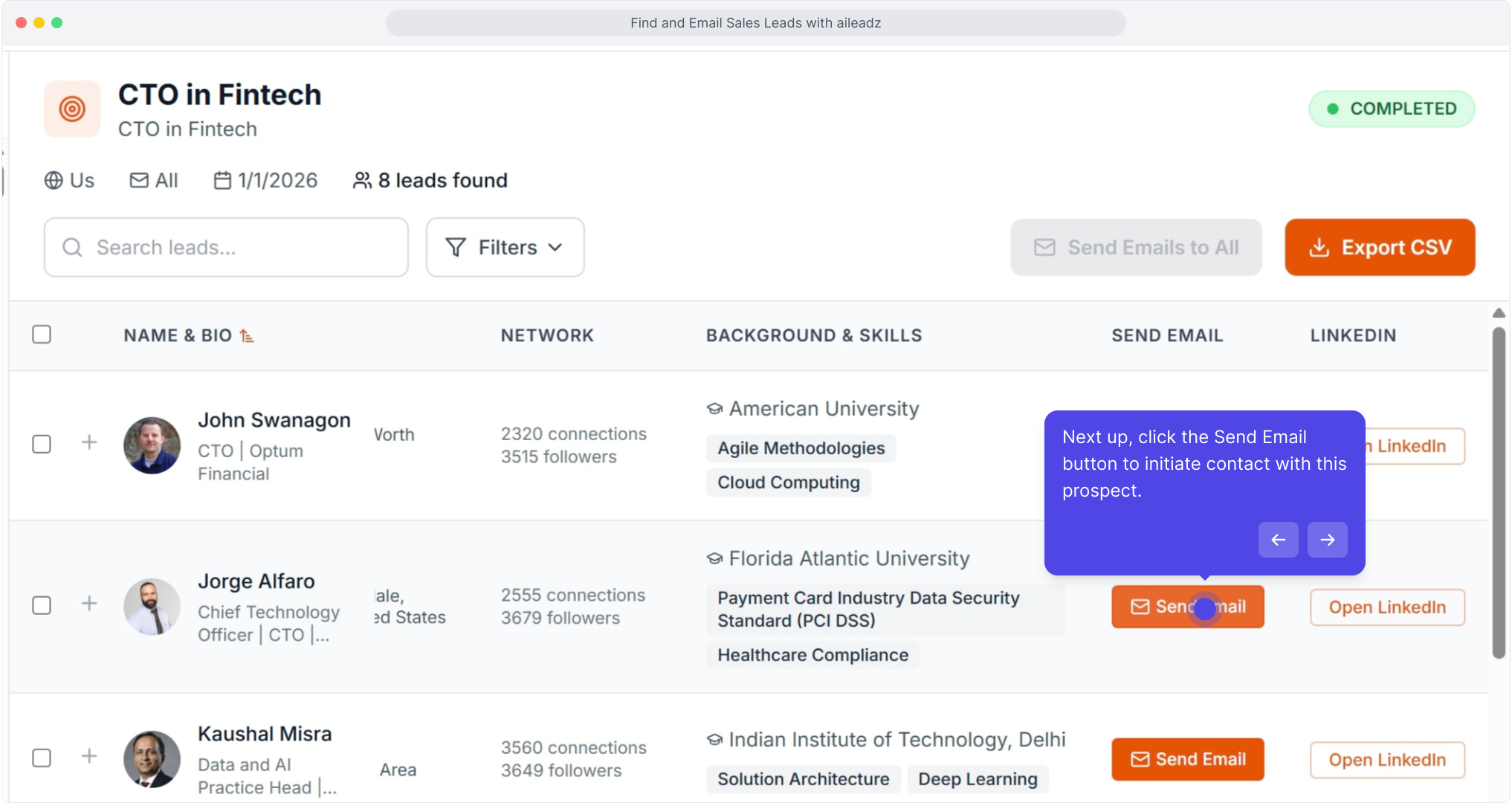
Next up, click the Send Email button to initiate contact with this prospect.
12
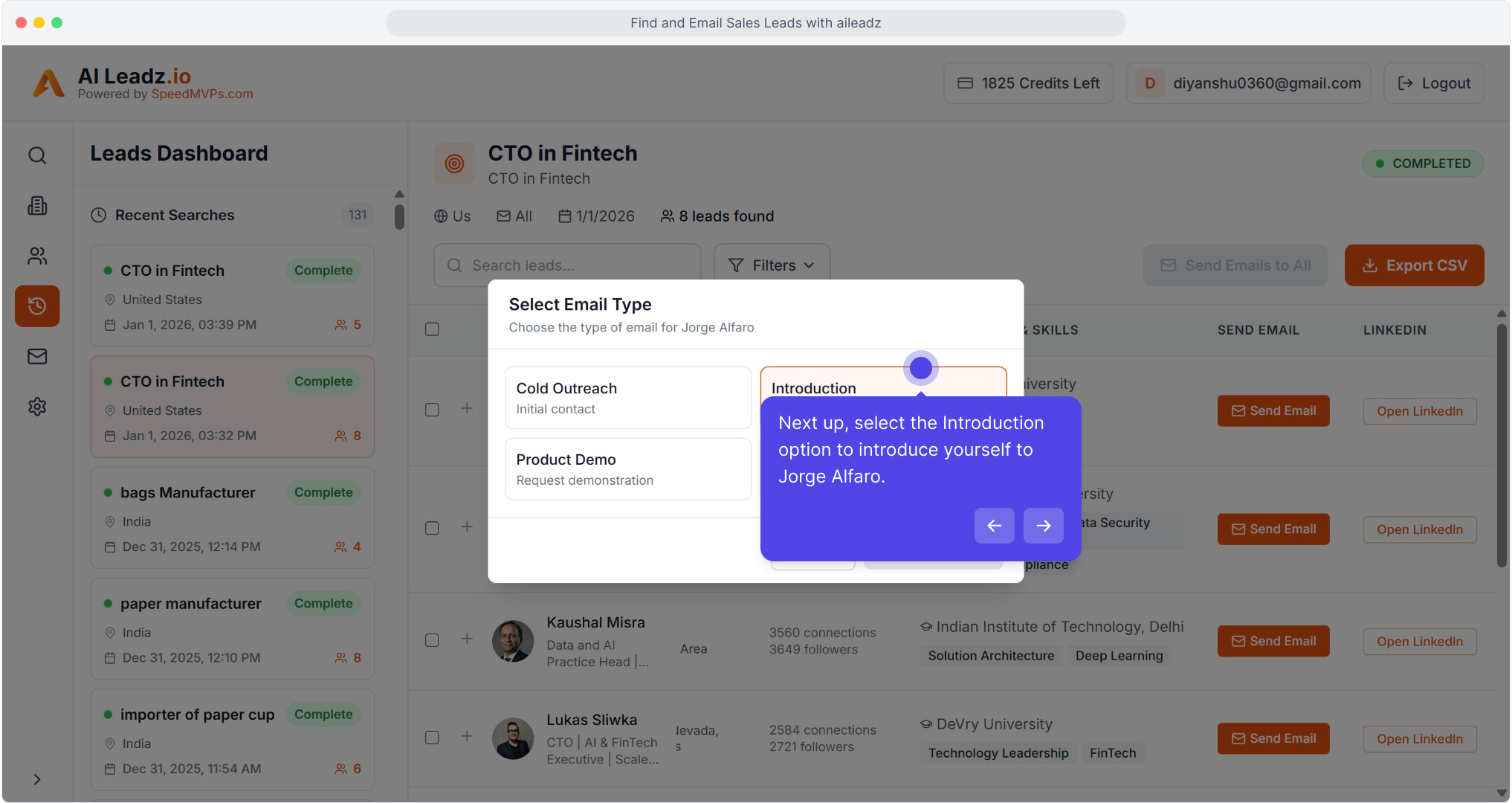
Next up, select the Introduction option to introduce yourself to Jorge Alfaro.
13
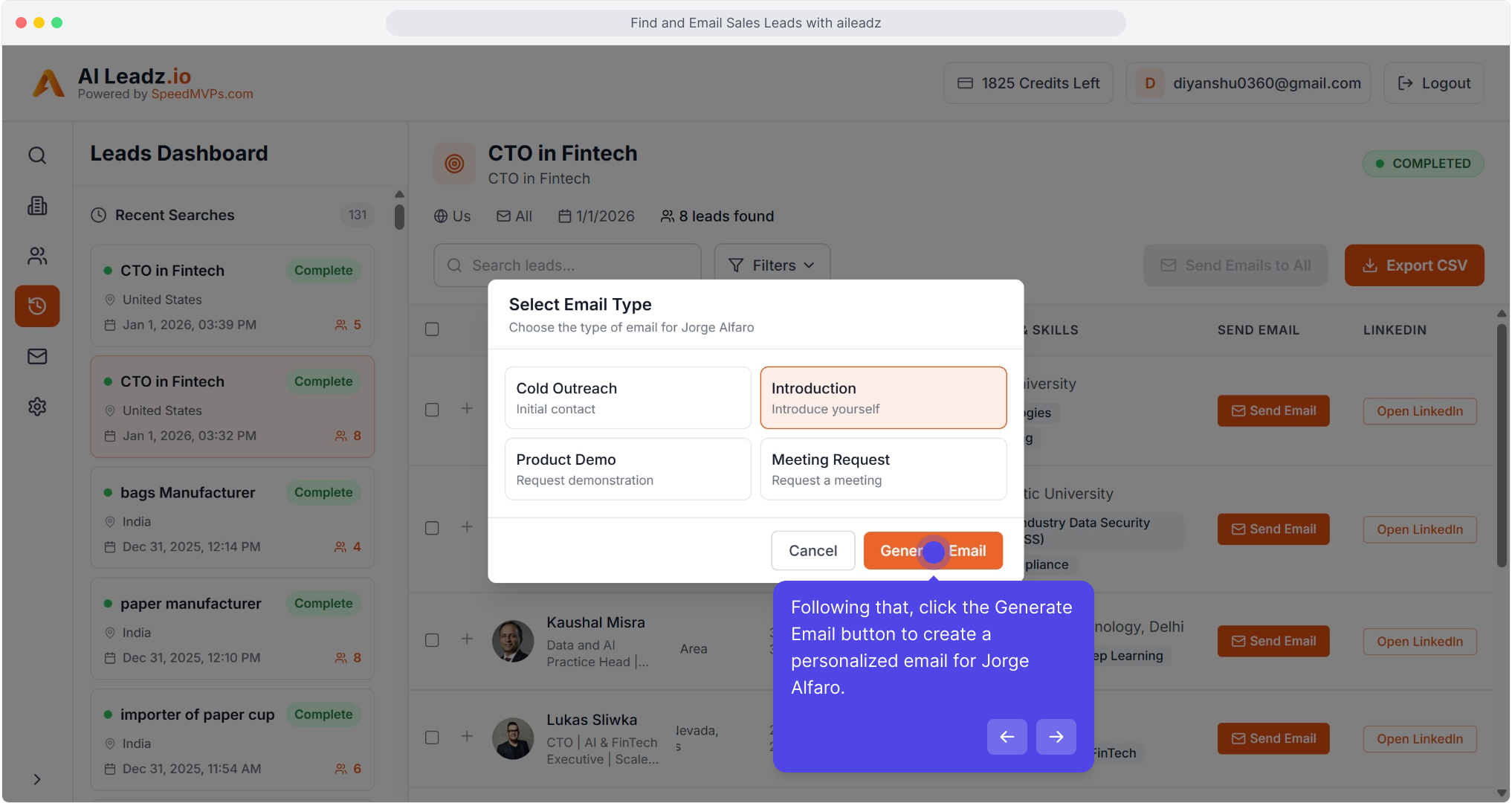
Following that, click the Generate Email button to create a personalized email for Jorge Alfaro.
14
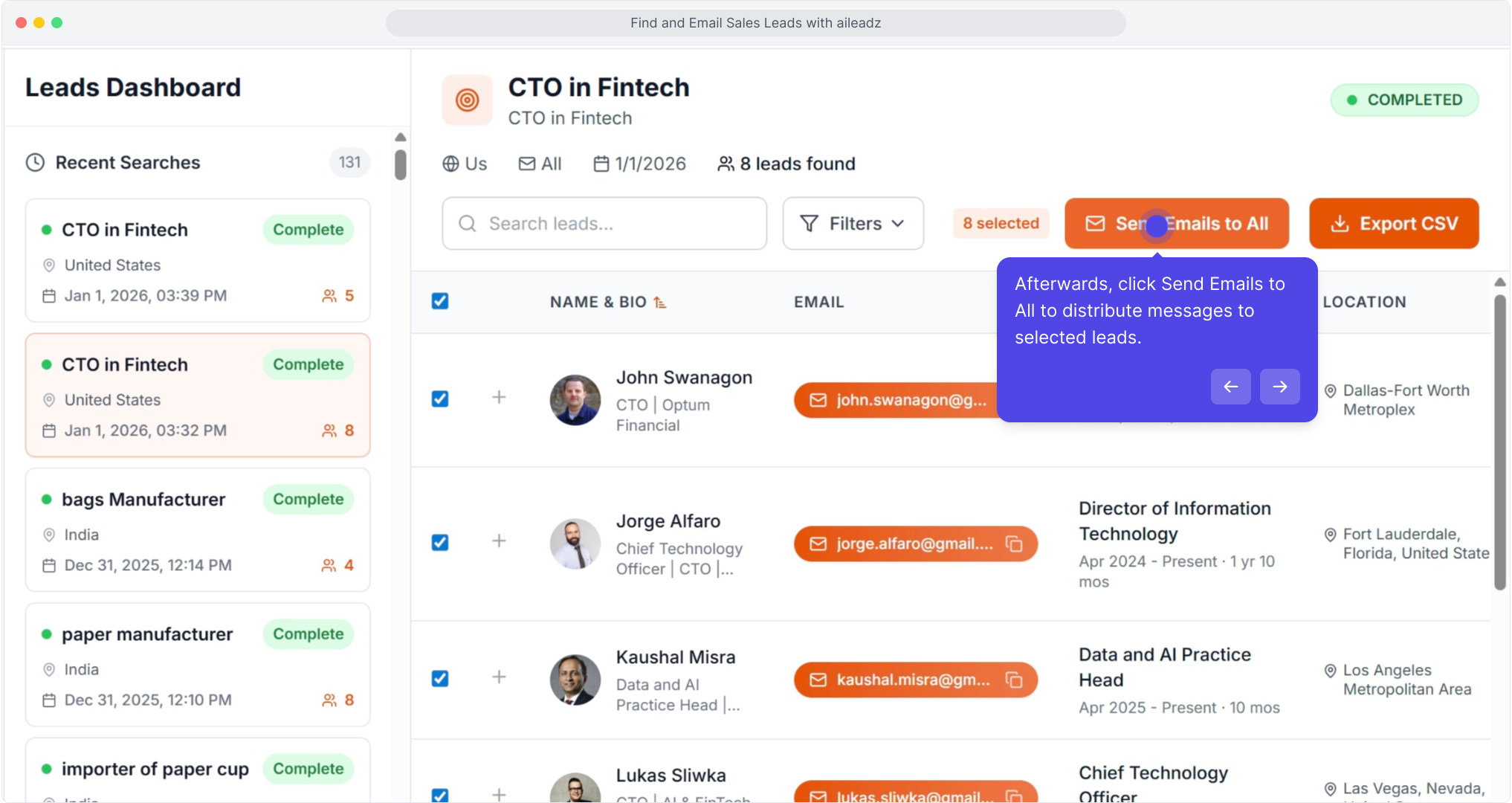
Afterwards, click Send Emails to All to distribute messages to selected leads.
15
From here, click on Nicole Beaulieu's email to preview and customize the outreach message.

16
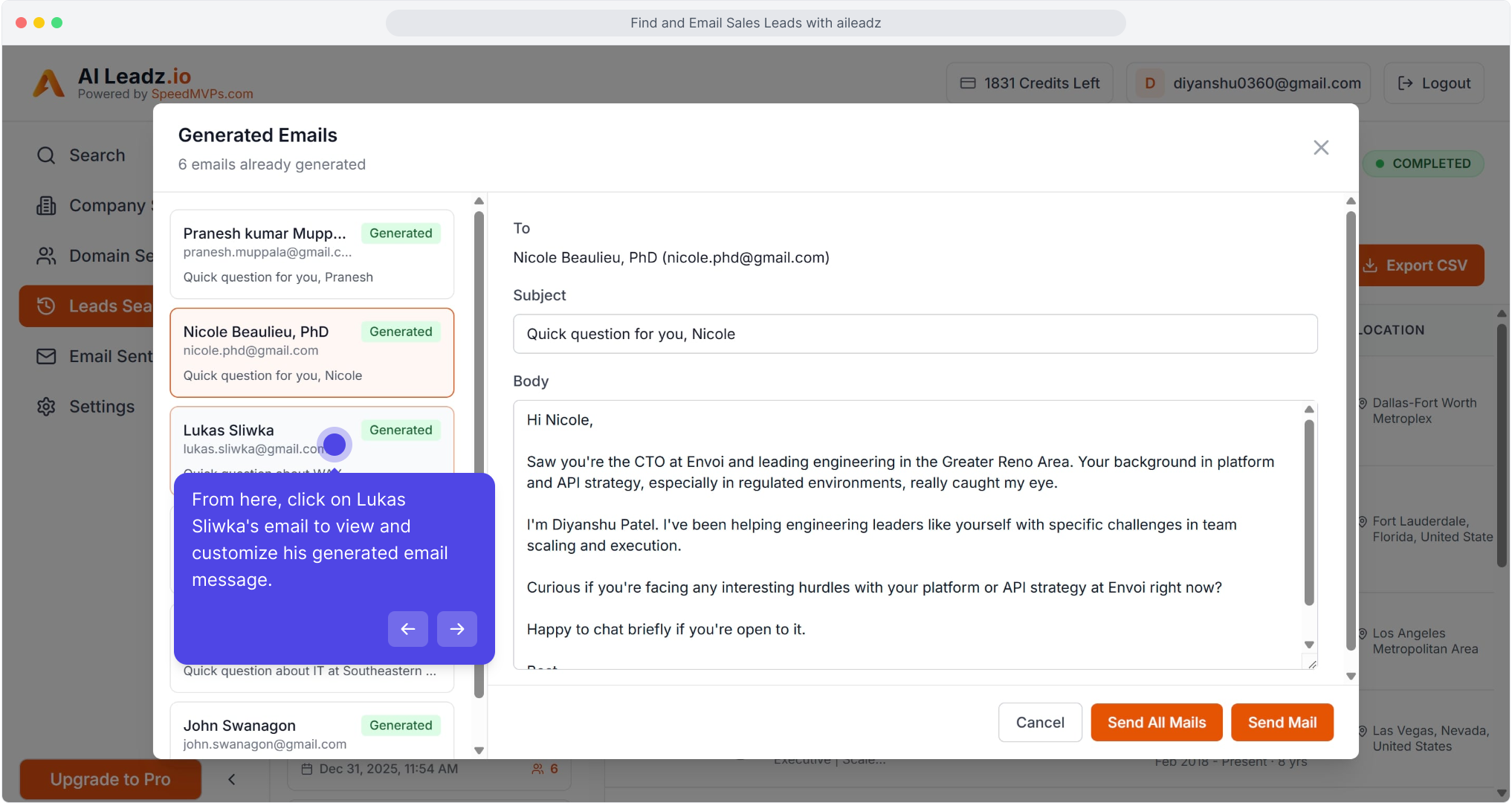
From here, click on Lukas Sliwka's email to view and customize his generated email message.
17
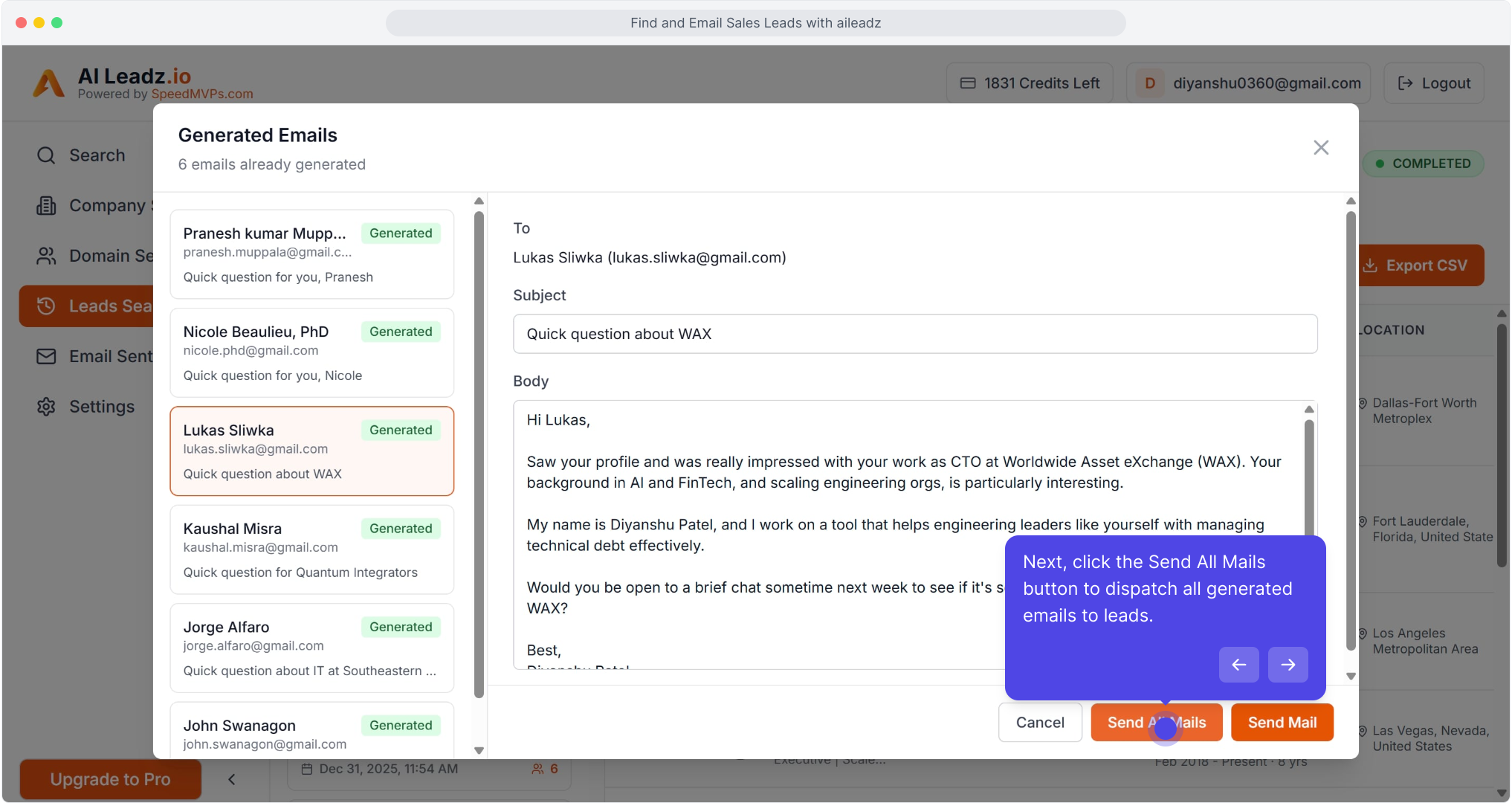
Next, click the Send All Mails button to dispatch all generated emails to leads.
18
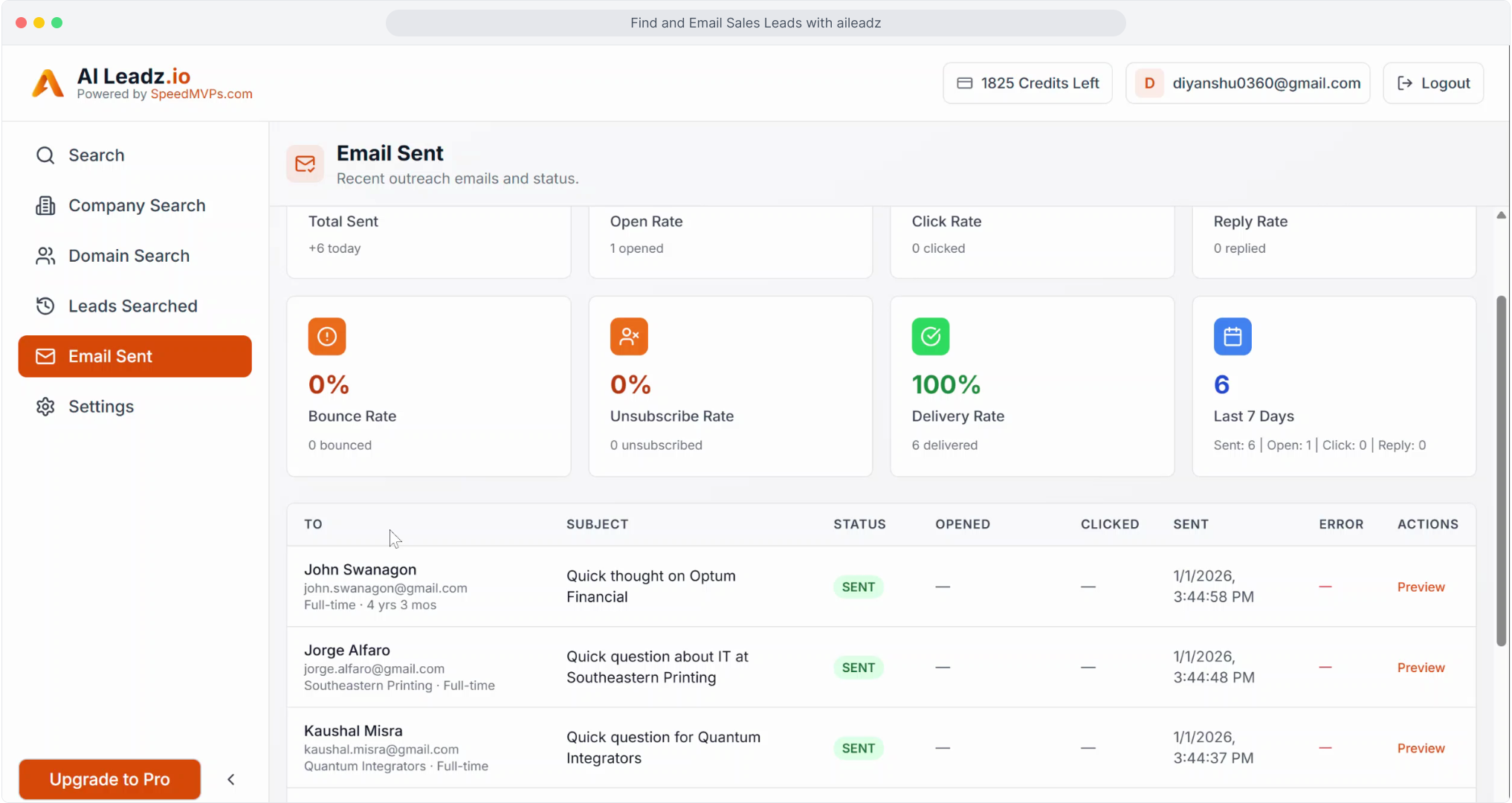
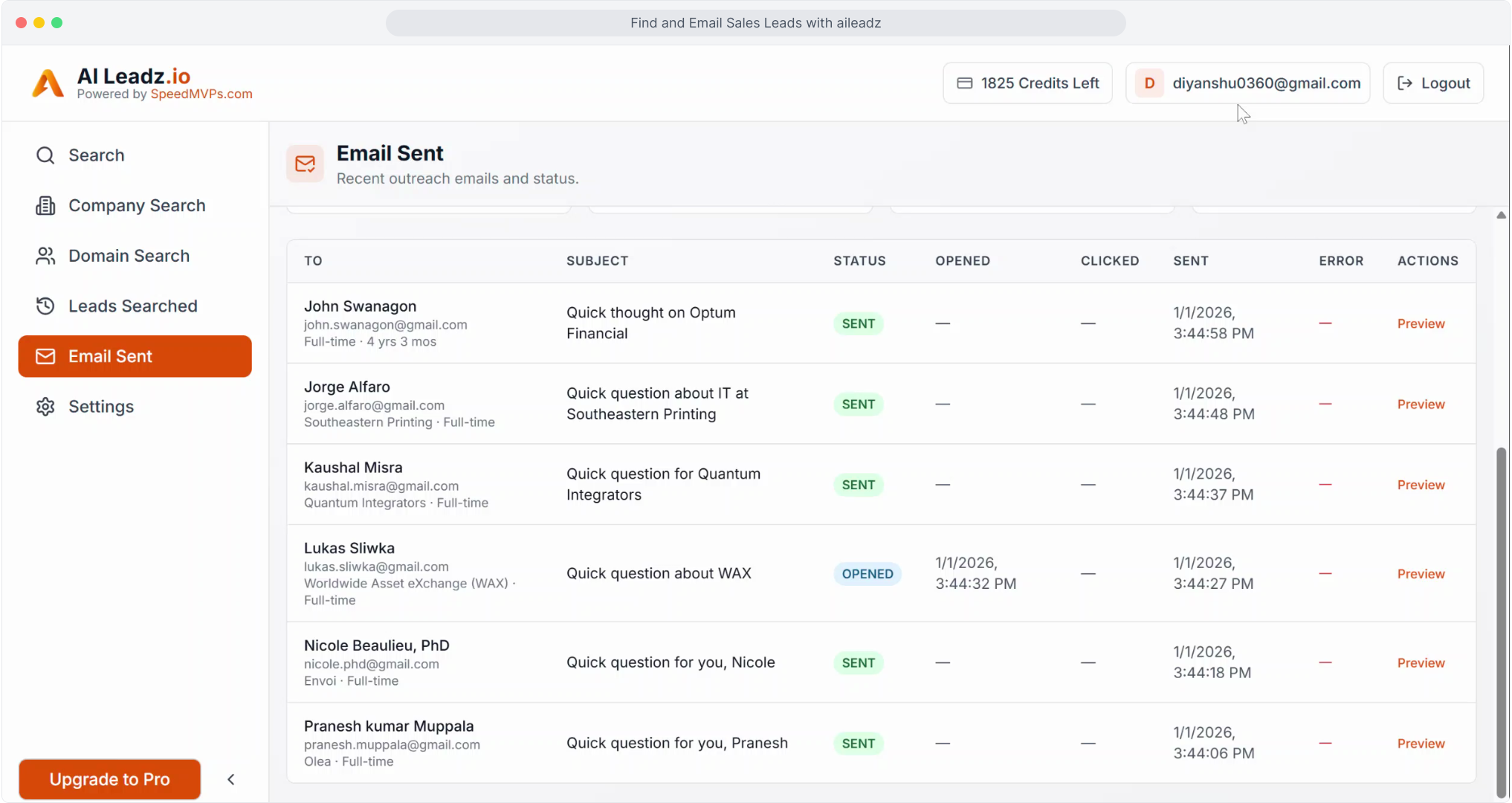
Following that, click the Unibox section to view all sent email communications.

19
Video StepVideo
20
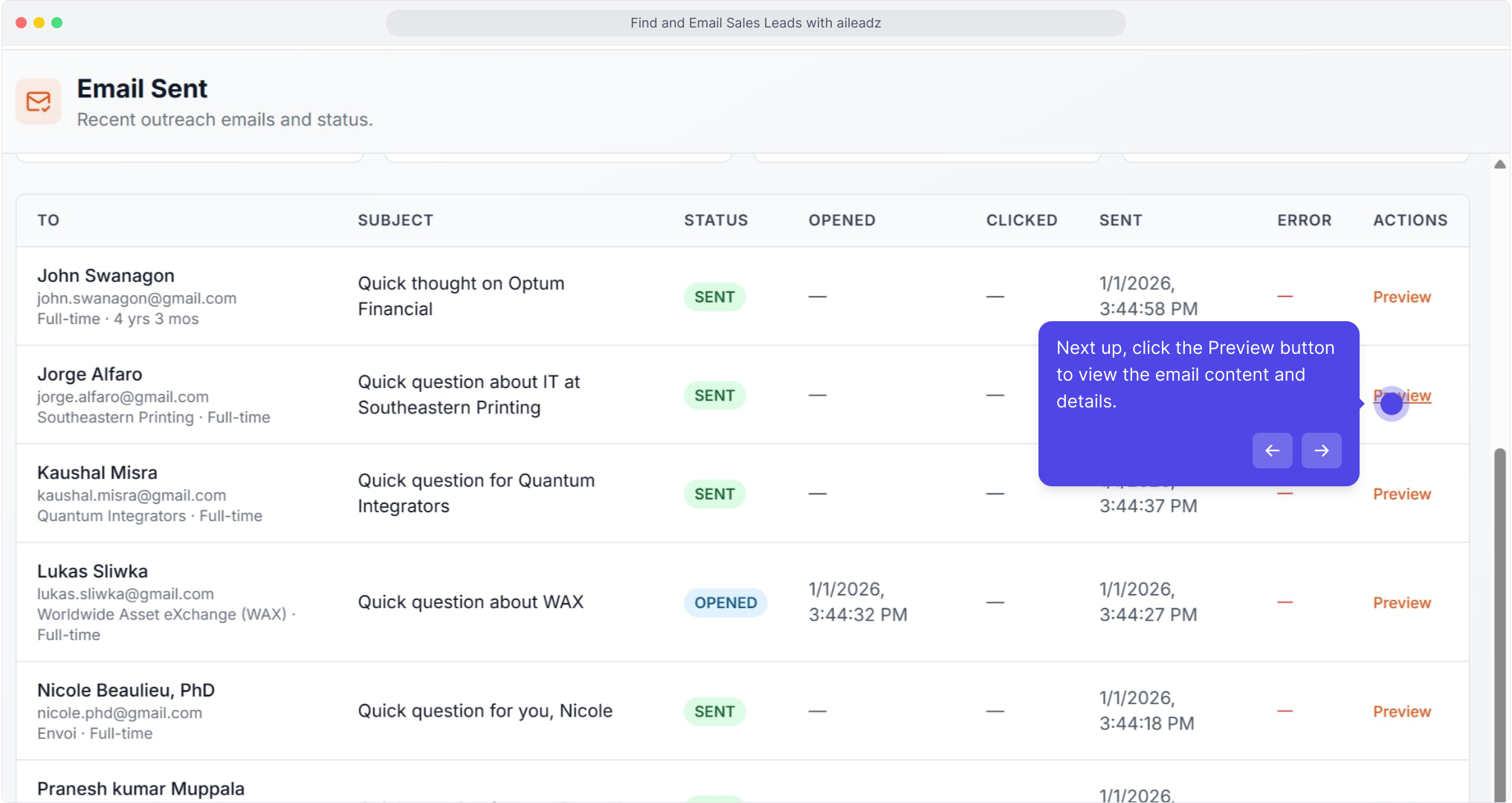
Next up, click the Preview button to view the email content and details.
21
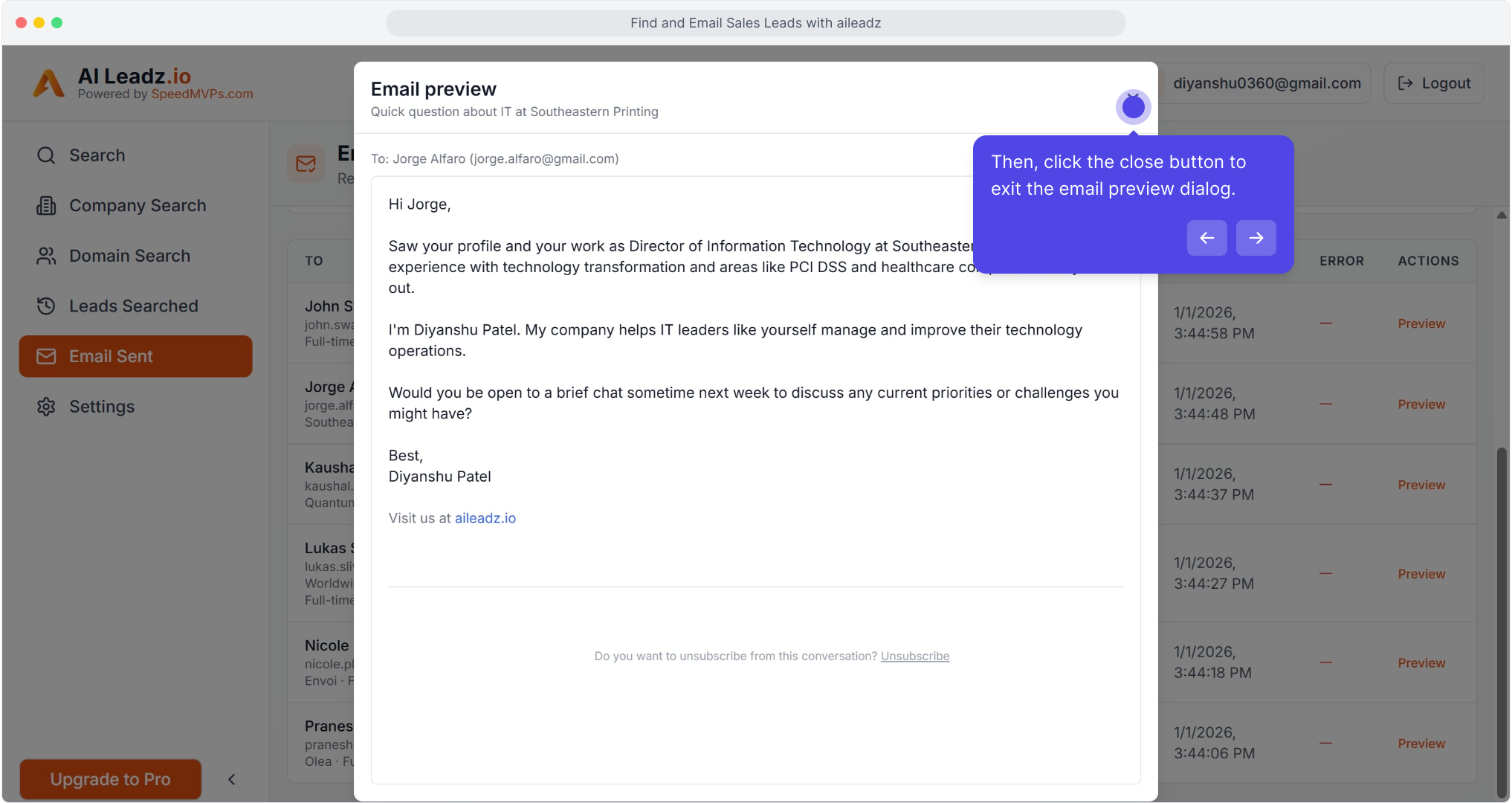
Then, click the close button to exit the email preview dialog.
22
Video StepVideo
This workflow was created with Supademo.
View Full Interactive Demo